Understanding the cutout toolbar

After opening the Editor View for a cutout (Using the cutout editor), the map automatically zooms to the associated survey. For editing an existing cutout or adding a new one, the Cutout Editor displays a set of tools in the map toolbar specific for cutouts.

If you click fullscreen in the map toolbar, the fullscreen view opens with specific toolbar items opened by default; Layer Legend, Editor Settings, Selection Details and Cutout Details. The fullscreen view omits those items from the toolbar, while the default view displays the items in the toolbar for you to open individually.


Toolbar in default view:

 

Toolbar in fullscreen view:

Cutout tools and functionality:

  • Fullscreen: Click to open the Fullscreen view. The fullscreen view offers a workspace specifically designed for working with cutouts. The fullscreen view opens with the map in the centre panel with two cutout tools docked on each side; Layer Legend, Editor Settings, Selection Details and Cutout Details.

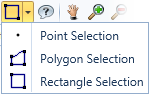
  • Selection: Selects an area, or points, from the survey displayed on the map. Use this tool to create the base of your cutout. The selection you create is a draft for the cutout. To create the selection as part of your cutout, you must add the selection to the cutout.
  • Midpoints: Click to display the midpoints on your selection.

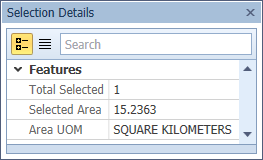
  • Selection Details: Click to open the Selection Details window.
  • Erase Selection: Erases the selection(s) that you created.
  • Add or Remove: Adds the selection to make it part of the cutout or removes the selection from the cutout.
    To add the selection, decide what type of cutout you are adding; Inclusion or Exclusion. Select the type and click Add .
    To use the selection to remove features from a cutout, select the type of cutout you are removing from (Inclusion or Exclusion) and click Remove .
    You can use this feature repeatedly to continue adding to and removing from the cutout.
  • Manual edit: Select the tool and your cursor changes to Manual Edit . With this cursor, click and drag points to modify the cutout.
  • Clear cutout: Clears the entire cutout type. Select the cutout type and then click Clear cutout.
  • Undo and Redo: Click to undo or redo your last edit to a cutout.
  • Cutout Details: Opens the Cutout Details window.
  • Snap to: Use snapping to help set your cutout. Select the snapping layer from the drop down. Then select one of the snapping tools:
  • Snaps all cutout points to the points of the selected layer.
  • Snaps selected cutout points to the points of the selected layer.
  • Bin grids: Click to display the bin grids for the survey. Zoom in on the map to view more bin grid detail.
  • Editor Settings: Click to open the Editor Settings window.

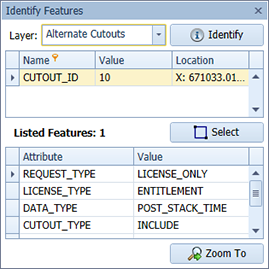
  • Identify: Identify the features of particular items on the map. Click to activate the Identify cursor . Click and drag to select features to identify. The Identify Features window opens with more options.
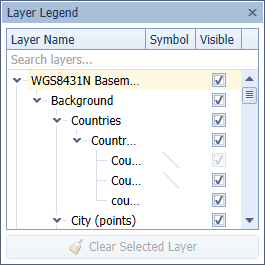
   

  • Layers: Click to open the layers legend. In the layers legend, select and deselect the checkboxes to display different map layers.

  • Pan: Click and drag to pan the map. Double-click to zoom in slightly.
  • Zoom in: Draw an area on the map to zoom the view to the specified extent.
  • Zoom out: Draw an area to quickly zoom out.
  • Full map: Click to expand the view to the full extent of the map.
  • Troubleshooting log: Click to display the technical actions of Exploration Archives. This is useful for your administrator when resolving issues.